
Banno Implementation Guide
Welcome to the Bits of Stock Partner Implementation Guide for Banno. This guide provides a step-by-step framework for launching your rewards and engagement program with Bits of Stock.
Initial program set-up
Our first step is to define how the program will function for your account holders. We will do the initial setup based on your requirements so that it is ready for integration into your product. Please send us an email with the following information:
What to send
What is this?
Premium plan price
This is the price per month account holders will pay to be on the premium plan
Reward percentage value
This is the percentage that account holders will be rewarded with through Stock Rewards program for each transaction
Redemption threshold value
This is the value of rewards that are needed before Stock Rewards can be redeemed to their portfolio
Rewards cap value
This is how many rewards can be gained per month
9 additional stocks
In addition to SPY (S&P 500 Index ETF), you may choose 9 stocks to make up the 10 stocks available to account holders through the Stock Rewards and Round-up programs.
A file representative of transaction descriptions
and/or
Log in credentials for a test account (production and UAT - sandbox)
These orient our system to how your transactions appear allowing us to map how the Round-ups and Stock rewards programs function. You only need to send us one, but both are helpful.
If you have additional questions or requests please contact us so that we can help you address them. After you send us this information we will get your partner account set up.
Fund the Partner House Account
Now that we have your initial set-up complete we need to fund your house account, which is what is used to fund the Stock Rewards program. These funds are held with our clearing partner and custodian Velox Clearing LLC. There are 2 ways to fund the Partner House account, Wire Transfer and ACH Transfer.
Wire Transfer Instructions
Send us an email with a bank address associated with the account that you will make the transfer from
Wire transfers can be rejected if the name or address on the wire does not match the information on file for the house account account. Make sure you communicate the correct information to us beforehand.
Make a transfer using the following information:
Recipient Bank Name: BMO Harris Bank, N.A.
Bank Address: 111 W Monroe St. Chicago, IL 60603
ABA Number (domestic wire transfers): 071000288
SWIFT Code (international wire transfers): HATRUS44
Beneficiary Account Name: Velox Clearing LLC
Account Number: 4360244
Address: 600 Brickell Avenue Suite 2800, Miami, Florida 33131
ACH Transfer Instructions
Send us an email from the account you would like to use for login to the Velox portal.
Log into the Velox portal here using the account number and password that we respond to your email with.
Then, click “Link a bank account”, and fill in the fields specifying your banking information.
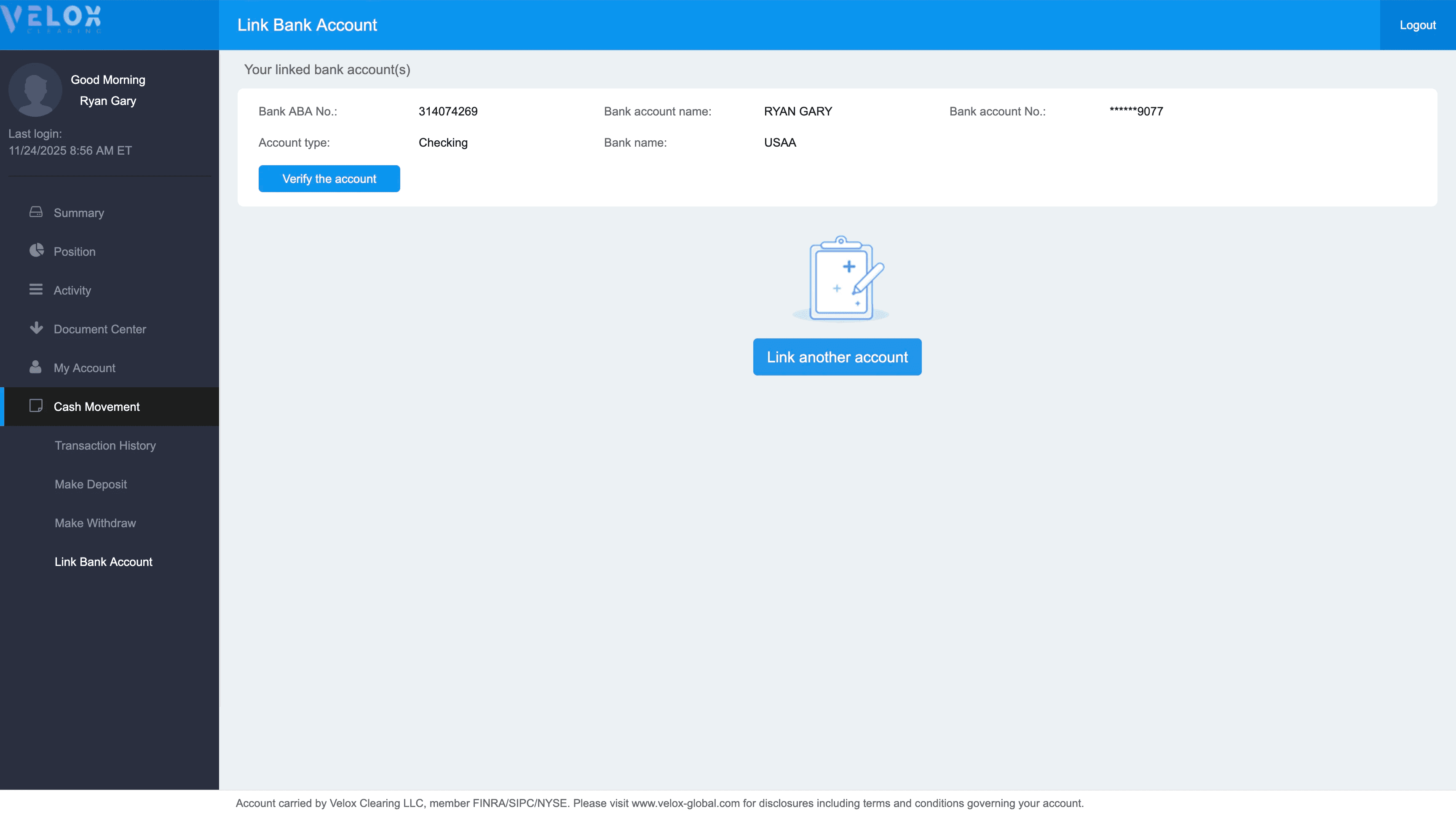
Navigate to Cash Movement in the sidebar —> Link Bank Account and select to Link Bank Account.
Click “Link Bank Account”.
Send us an email so that we can confirm the account successfully linked.
The ACH bank account will need to be verified using 3 micro transactions following these steps:
In the transaction history of the bank account you are linking you should see three transactions from velox similar to below.
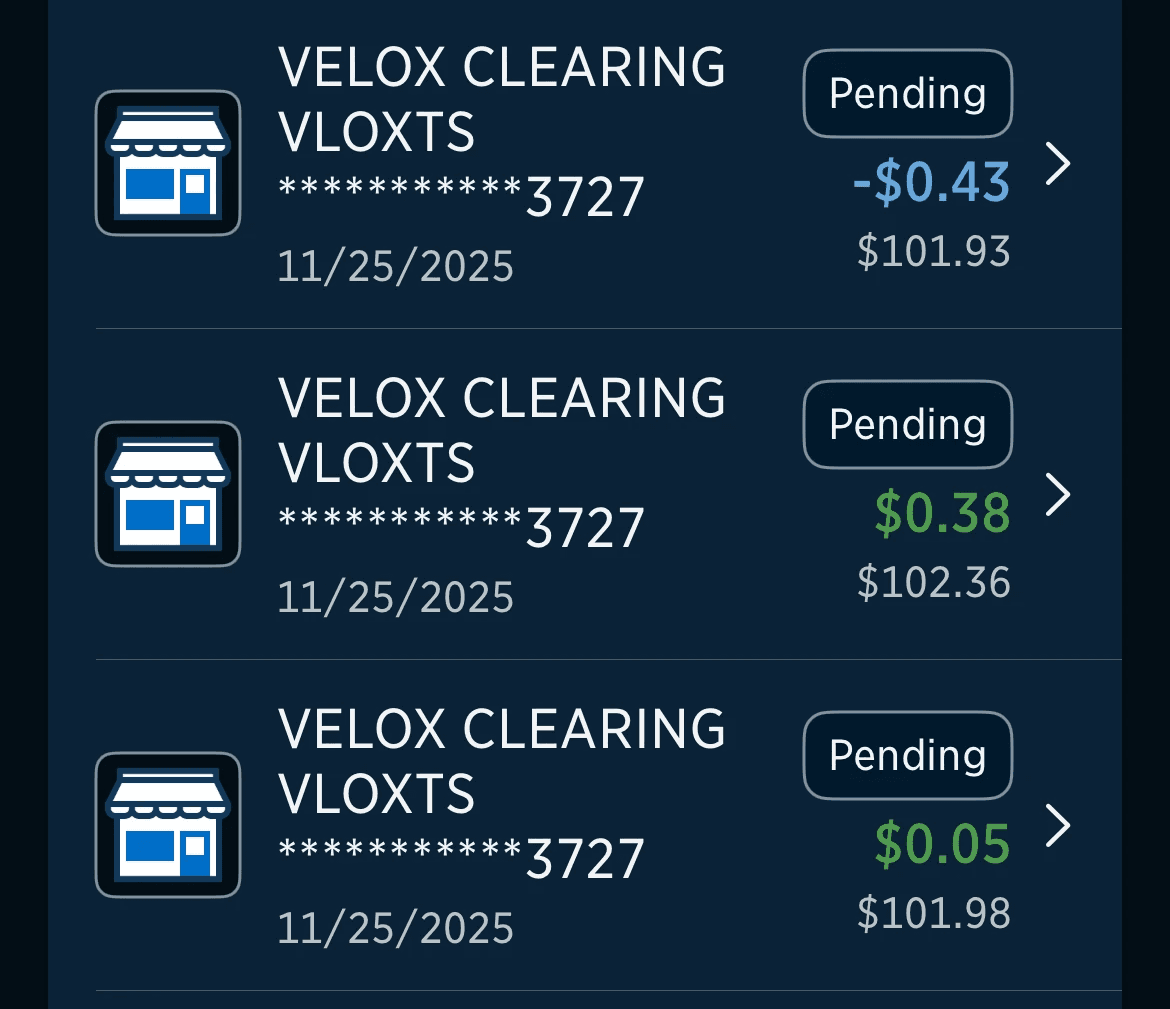
Once you find those transactions navigate back to Cash Movement in the sidebar —> Link Bank Account and select "Verify the account".
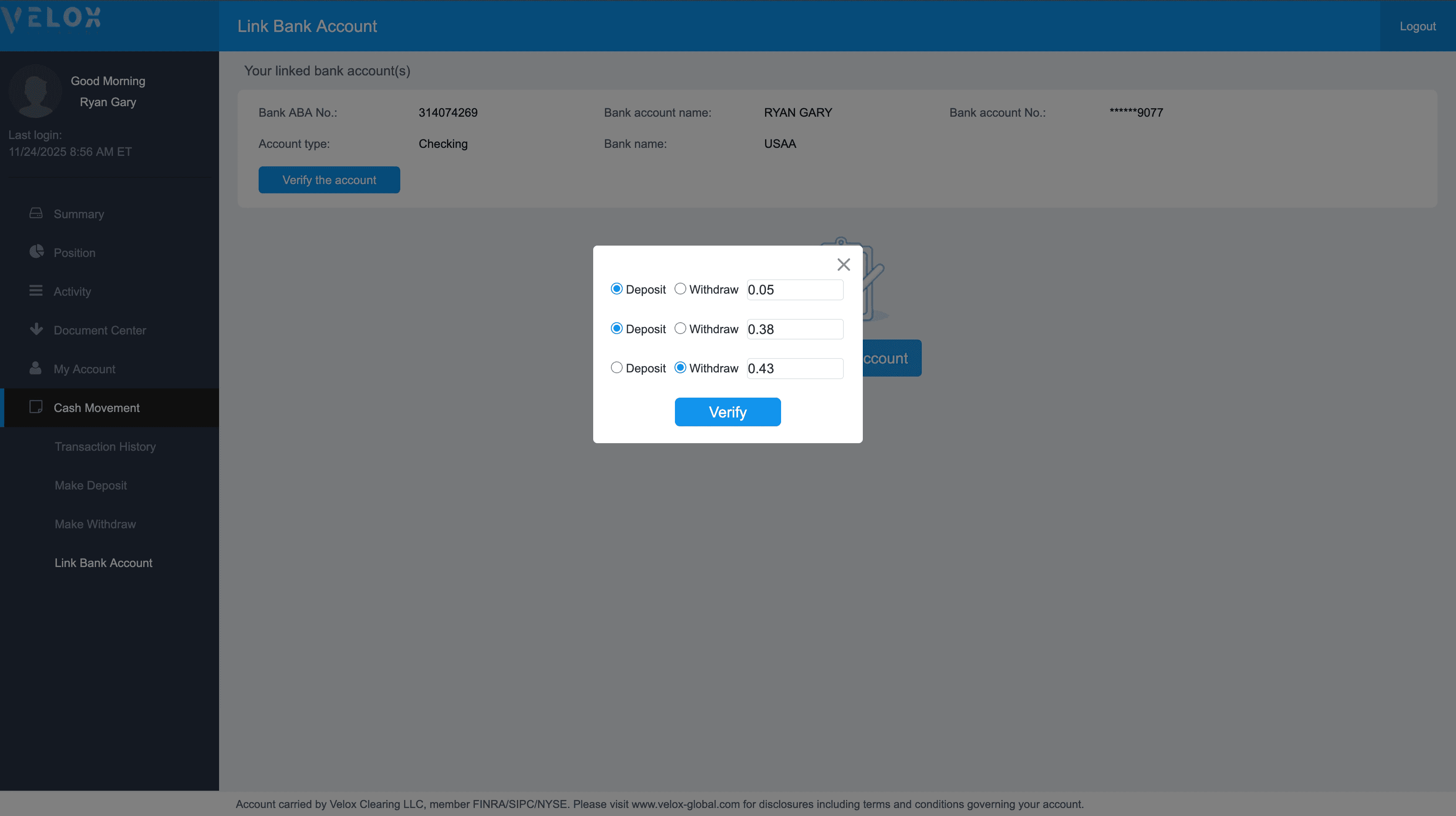
Your account is now linked. Go to Cash Movement —> Make Deposit and select the amount you’d like to deposit into the house account
There is a daily limit of $50,000 when working with ACH
Program personalization
Bits of Stock’s Rewards Investment Platform is set up to be extremely customizable and fit seamlessly in any Online Banking Experience using your brand colors. Our team will handle customizing this for you, to assist us in meeting your expectations please send us the following items/information:
What to send
What is this?
Brand Assets
A theming/style sheet with your logos and primary/secondary/tertiary colors as they are used within your product.
This can include a screenshot of your current product’s environment.
Our team will use this information to set up the look and feel of your Bits of Stock environment. Later in testing we will be able to make any tweaks as they are needed to meet your preferences.
Banno Configuration
In this guide, we will be configuring your Bits of Stock integration using Banno People. We will set up the following items:
Main Application
Dashboard Widget
Service Account
Configuration Document for Bits of Stock
Before you start
Ensure you have received the “Bits of Stock Integration Details” document from the Bits of Stock team. This document provides the configuration details used below. The document should look like this:
Field
Value
bits_partner_id
(this should be a string of numbers)
service_account_public_key
(this should be a string of numbers)
In the guide below, fields encapsulated with {{ }} are variables that should be replaced with the fields given in the “Bits of Stock Integration Details” document.
Main Application Set-up
This section guides the set-up of the menu item for Bits of Stock in the left menu. In this section, you will:
Create a new external application (Main)
Store external application details to send to the Bits of Stock team
Create External Application
Open Banno Admin.
Navigate to People > Settings > External Application.
Create a new external application.
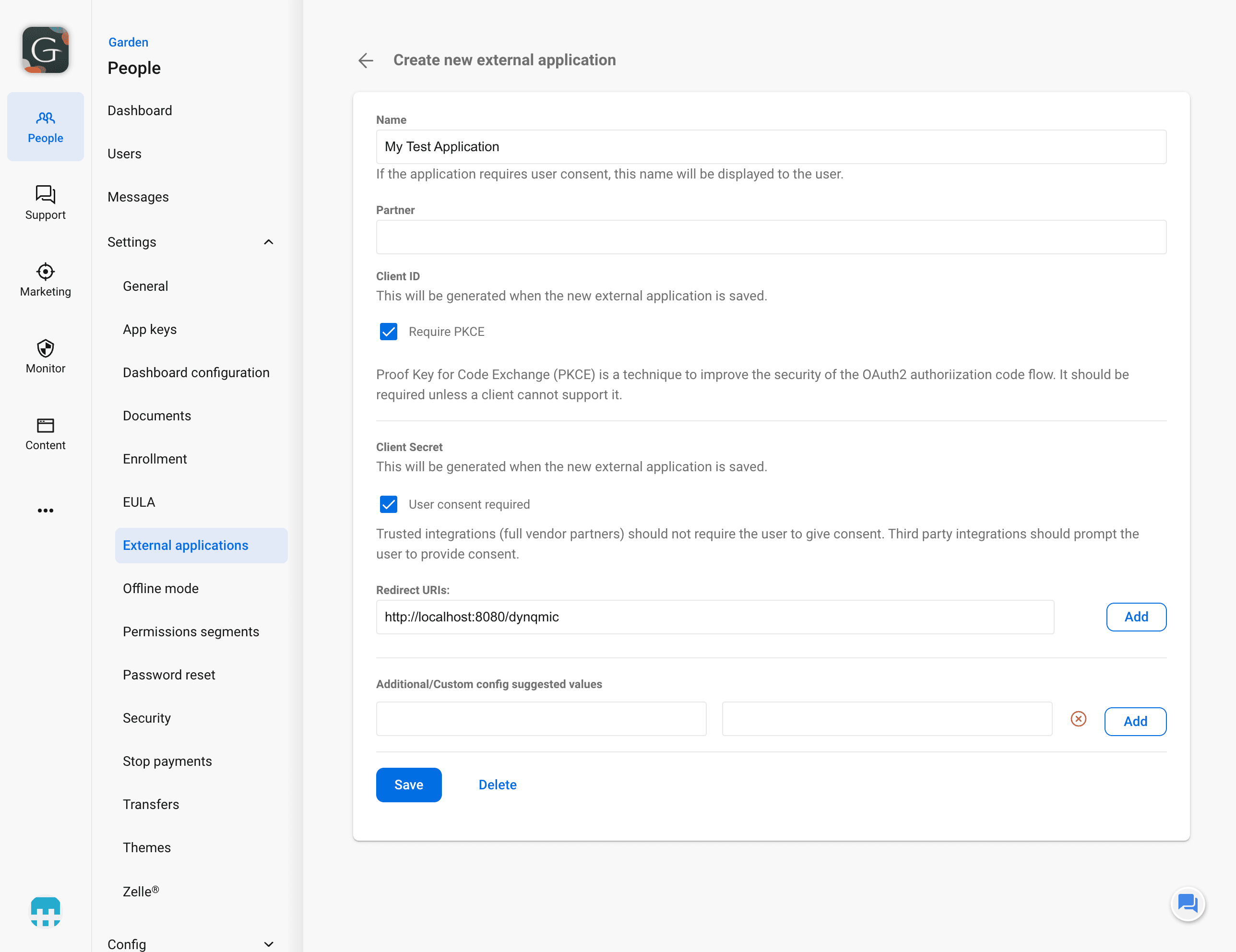
Enter the following information:
Name: Bits of Stock - Main
Require PKCE: Checked
User consent required: Unchecked
Redirect URIs: Please make sure to enter in the following order and to use the provided bits_partner_id given to you by the Bits of Stock team.
Make sure to use the bits_partner_id provided by the Bits of Stock team in the URI below.
https://graf.bitsofstock.com/v1/oidc/initiate?partner_id={{bits_partner_id}}
This URI must be the first entry in the “Redirect URIs”
https://secure.bitsofstock.com
https://secure.bitsofstock.com?defaultSelectedModule=dashboard-widget&layout=singleApp
https://secure.bitsofstock.com?module=dashboard-widget&layout=singleApp
Save the external application. You will be taken to a list of external applications. Click on the application you just created. You will be shown a screen similar to the following:
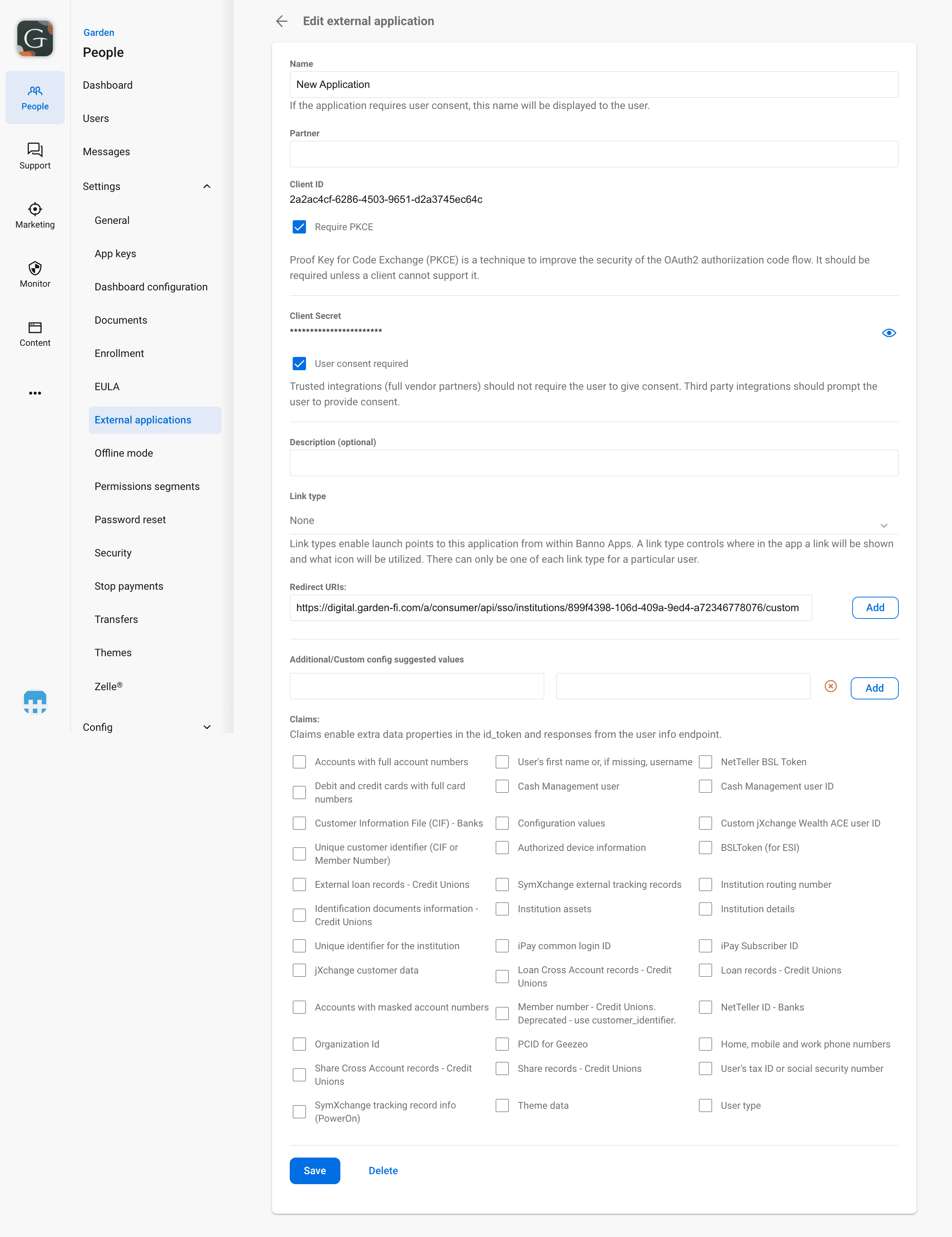
Enter the following information:
Link type: BrokerageTools
Select the checkboxes for the following claims:
Accounts with full account numbers
Customer Information File (CIF) - Banks
Unique customer identifier (CIF or Member Number)
User's first name or, if missing, username
Theme data
Institution routing number
Institution details
NetTeller ID - Banks
Copy the client_id and client_secret to update the Bits of Stock Integration Configuration Document. The client_secret is sensitive information, so please treat it appropriately.
Save the external application.
Store external application details
Dashboard Widget Set-up
This section guides the setup of the dashboard widget that appears on the home screen. In this section, you will:
Create another new External Application (Dashboard Widget)
Store external application details to send to Bits of Stock team
Create a Dashboard Plugin Card
Create External Application
Open Banno Admin.
Navigate to People > Settings > External Application.
Create a new external application.
Enter the following information:
Name: Bits of Stock - Dashboard Widget
Require PKCE: Checked
User consent required: Unchecked
Redirect URIs: Please make sure to enter in the following order and to use the provided bits_partner_id given to you by the Bits of Stock team.
Make sure to use the bits_partner_id provided by the Bits of Stock team in the URI below.
https://graf.bitsofstock.com/v1/oidc/initiate?module=dashbarod-widget&layout=singleApp&partner_id={{bits_partner_id}}
This URI must be the first entry in the “Redirect URIs”
https://secure.bitsofstock.com
https://secure.bitsofstock.com?defaultSelectedModule=dashboard-widget&layout=singleApp
https://secure.bitsofstock.com?module=dashboard-widget&layout=singleApp
Save the external application. You will be taken to a list of external applications. Click on the application you just created. You will be shown a screen similar to the following:
Enter the following information:
Link type: PluginCard
Select the checkboxes for the following claims:
Accounts with full account numbers
Customer Information File (CIF) - Banks
Unique customer identifier (CIF or Member Number)
User's first name or, if missing, username
Theme data
Institution routing number
Institution details
NetTeller ID - Banks
Copy the client_id and client_secret to send to Bits of Stock at the end of this guide. The client_secret is sensitive information, so please treat it appropriately.
Save the external application.
Bits of Stock Integration Configuration Document
Store external application details
Create Pulgin Dashboard Card
Open Banno People and navigate to People > Settings > Dashboard configuration.
Click “Add an item” and then “Create a plugin.”
Enter the following information:
Title: Bits of Stock
Description: Get a quick overview of your Bits of Stock portfolio.
External Application: Bits of Stock - Dashboard Widget
Initial height: 436
Icon: arrow-trend-up
Available to everyone: false
Card action:
Label: {leave blank}
External Application: {leave blank}
Save the plugin.
Service Account Set-up
This section guides the setup of the API access used by Bits of Stock to fetch customer/member information and send messages. In this section, you will:
Create an External Application Associated User
Create another new External Application (Service Account)
Store external application details to send to Bits of Stock team
Create Associated user
Open Banno Admin.
Navigate to Users & Groups
Create a new user.
Enter the following information:
Email: techaccounts@bitsofstock.com
Title: Bits of Stock Service User
Select the following permissions:
Manage Institution Messages
Create External Application
Open Banno Admin.
Navigate to Users & Groups.
Create a new external app.
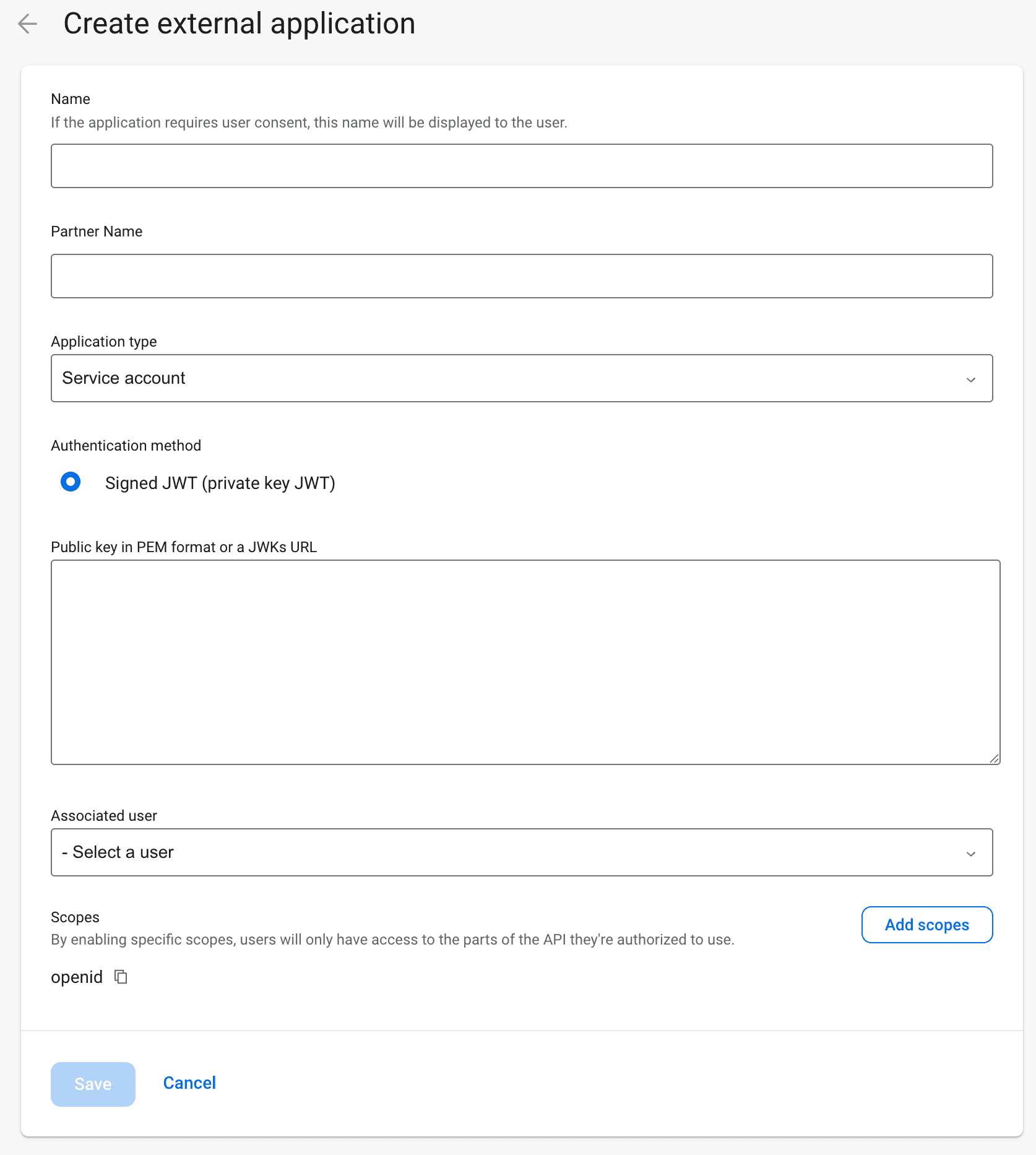
Enter the following information:
Name: Bits of Stock Service Account
Partner Name: Bits of Stock
Application Type: Service Account
Authentication method: Signed JWT (private key JWT)
Public key in PEM format or a JWKs URL: {{service_account_public_key}}
Associated User: Bits of Stock Service Account
Store external application details
Send Integration Configuration Document
Once you have completed all steps above, your “Bits of Stock Integration Configuration Document” should have no empty fields. There should be three unique client_ids and two unique client_secrets. Once this is complete. Please send this document to techaccounts@bitsofstock.com via encrypted email. The details contained in the document are sensitive and should not be shared with unauthorized persons.
Testing
Configuration is nearly complete now we just need to run a few tests to make sure everything is working from a technical perspective.
What to test
Check that the links in the menu bar work on desktop and mobile going to and coming from the Bits of Stock application
Check that the dashboard widget works on desktop and mobile to navigate to the Bits of Stock application
Set Terms and Conditions
One of our final steps is to create the compliance documents account holders will need to create their account and make use of our programs. To do this you will need to a to write Program Disclosure (example here):
Standard Disclosure
BITS OF STOCK™ NON-DEPOSIT INVESTMENT PRODUCTS – Bits of Stock investments are not insured by the NCUA/FDIC. They are not a deposit or other obligation of, or guaranteed by, the depository institution. They are subject to investment risks, including possible loss of the principal amount invested. These non-deposit investment products are insured by the SIPC with a total of up to $500,000, including $250,000 in cash.
Example Premium Account Qualifications
In addition to this you will need to update Bits of Stocks general T&Cs to Banno EULA, change membership disclosures to be active for all accounts.
Prepare for Launch
Our final step is to review the pre-launch checklist. Once everything here is complete we are good to go live!
Pre-launch Checklist
Implementation Done (all steps in guide completed to this point)
Implementation Tested in UAT (optional)
Pilot test in Production, following the test guide provided below
All feedback from testing resolved
Test Guide
The goal of the production test is to get an internal group of about 10 persons to test out the integration and get familiar with the product. Please review the below items to guide you through the testing. Keep in mind, this is the real deal:
Real Transactions
Real Rewards
Real Brokerage
Important: To ensure efficient testing of the integration, Bits of Stock will require a Production environment test account. This account may be used in the future to test out the compatibility of new features before being released.
Brokerage Account Creation
To start using the program and its features to the fullest, you will have to create a brokerage account. We work with the Online Banking Platform to get most of your information prefilled.
Check if your correct details are prefilled
Check if your brokerage account creation was submitted successfully
Wait one day for the brokerage account to be opened
Round-ups
In Production, we ask you to test the following items and flows:
Pick your first stock to gather Round-ups in (if not set already)
Open a brokerage account (if not done already)
See the spare change get rounded up from real transactions
See your Round-ups in your account
Try changing the frequency of Round-ups
Try changing the Round-ups multiplier
Try pausing and un-pausing Round-ups
Check if Round-ups are reflected in the Account History
Stock Rewards
In Production, we ask you to test the following items and flows:
Pick your first stock to be rewarded in (if not done already)
Earn rewards based on real transactions
Reach a threshold ($5)
Open a brokerage account (if not done already)
Perform a redemption
Portfolio
Try the Transfer functionality:
Check if your FI Checking Account is automatically linked.
Deposit cash
Withdraw cash
Buy and/or sell positions
Check if you receive trade confirmations from those positions.
Tier upgrades
In Production, you can test the payment flow to get to the 2nd (premium) tier. This will also enable you to see what your account holders go through.
You can do this by navigating to the Profile button on the top right, selecting Bits of Stock Account Info and then Manage plan. Here you can click to upgrade and follow the steps provided.
After the subscription, your account should be automatically updated to the Tier 2 (premium) experience.
Feedback
If the testing uncovers any items that are not working as they are supposed to, please contact your Customer Success representative and let them know of your findings.