How to Deposit Money: A Step-by-Step Guide to Our Transfer Flow
Ready to fund your brokerage account with ease?
Watch our detailed educational video to learn how to deposit money using our new transfer flow. In this tutorial, we'll walk you through each step of the process, from linking your bank account to confirming your deposit. Our expert guide will ensure you understand every detail, providing helpful tips along the way to make your experience seamless and secure. Whether you're new to investing or a seasoned pro, this video will equip you with the knowledge you need to efficiently manage your deposits. Start watching now and take the first step towards enhancing your investment portfolio!
Want some step by step instructions?
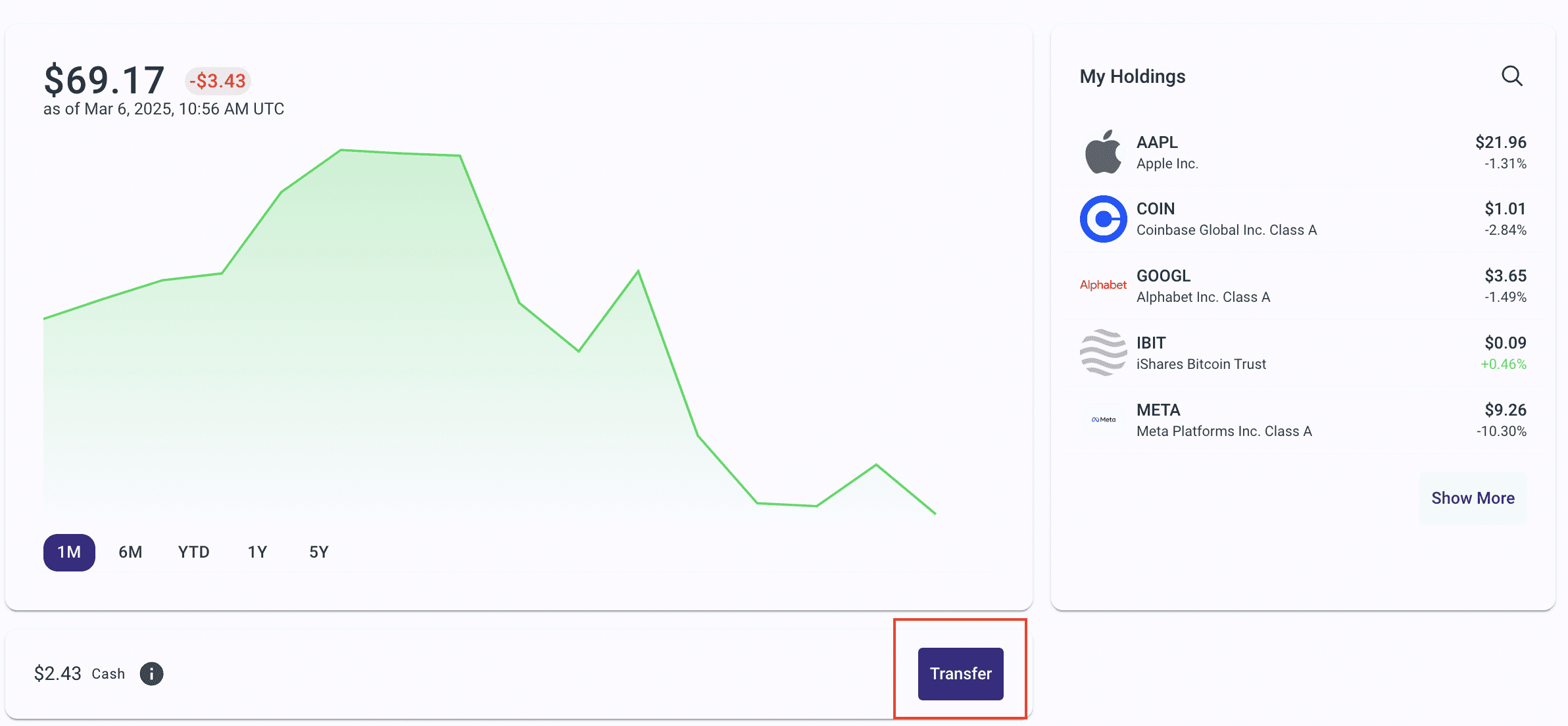
Step 1: Initiate the process
Navigate to the Portfolio page and click on "Transfer"
Step 2: Withdraw or deposit?
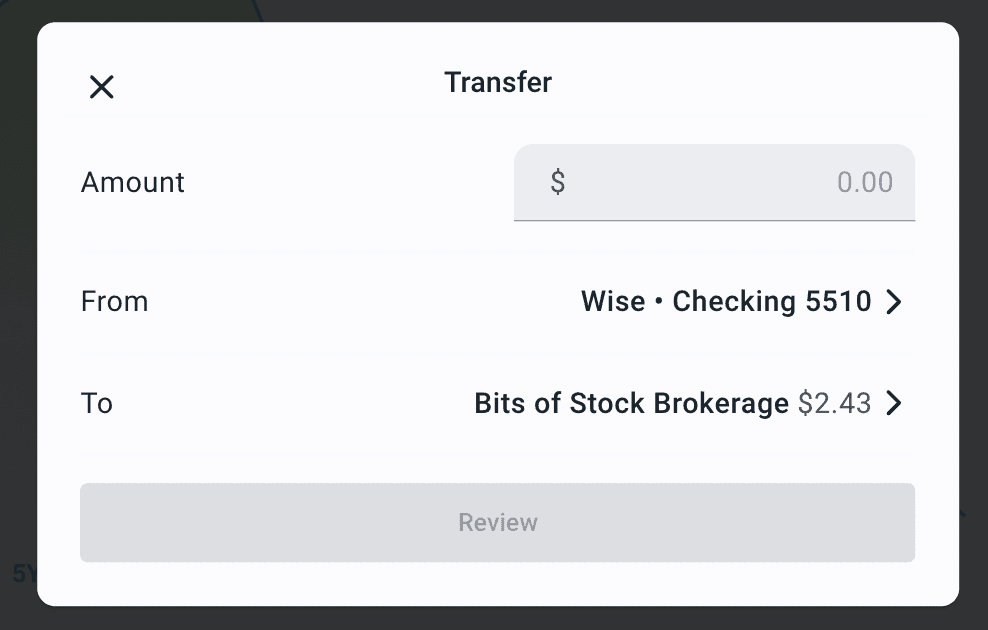
Withdrawing or depositing money use the same process, but this guide will walk-through the steps for depositing. To switch between withdrawals and deposits, switch the accounts involved in the transfer:
For Deposits:
From: Select the checking or savings account the money will come from
To: Your Bits of Stock brokerage account
For Withdrawals:
From: Your Bits of Stock brokerage account
To: Select the checking or savings account where you want the money sent
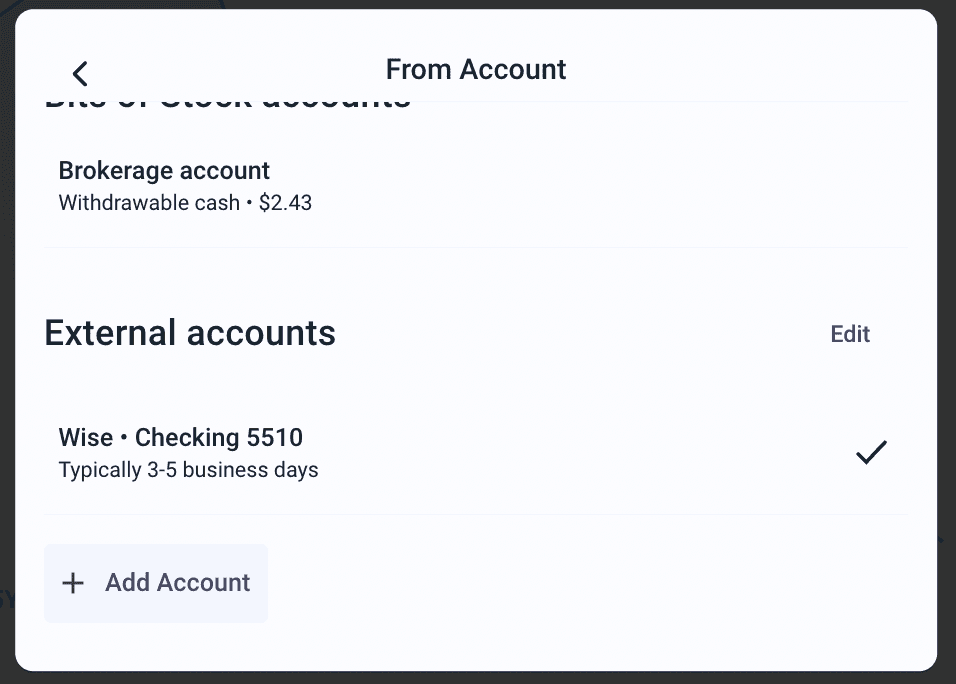
To change the account, simply click on the account dropdown and select your desired account.
Step 3: How much?
Decide on the dollar amount you want to transfer and enter it in the provided box. You can change the amount at any time by typing a new number.

Step 4: Add a new account
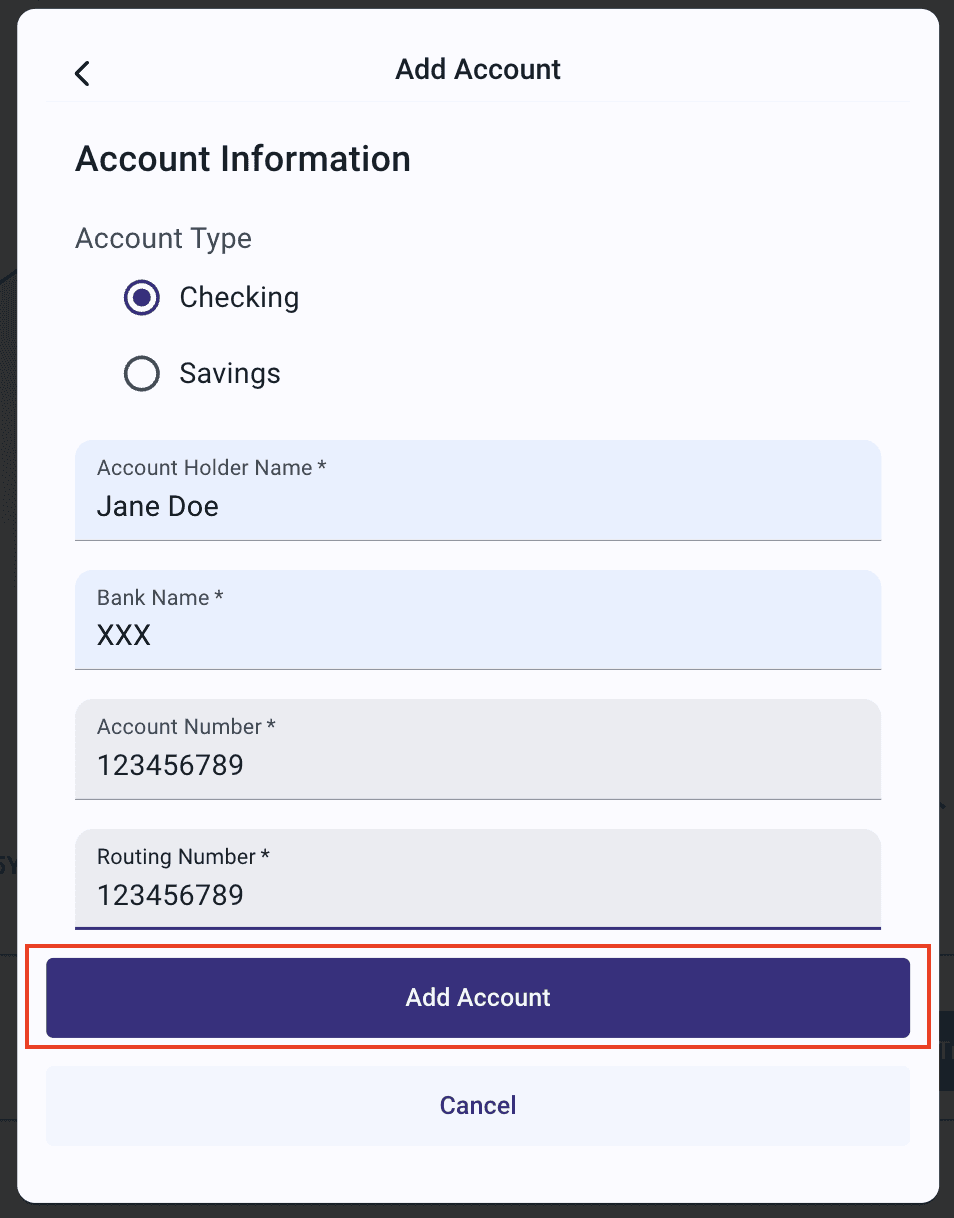
If needed, add an account by:
Clicking "Add Account"
Choosing between Savings or Checking
Filling out all required fields:
Account holder name
Bank name
Account number
Routing number
Note: to ensure correct account verification, make sure the account holder name matches the brokerage portfolio name.
Once everything matches, click on add account. If not adding an account, press cancel. Adding an account can take from a minute to one business day, depending on the bank.
Step 5: Review your transfer details
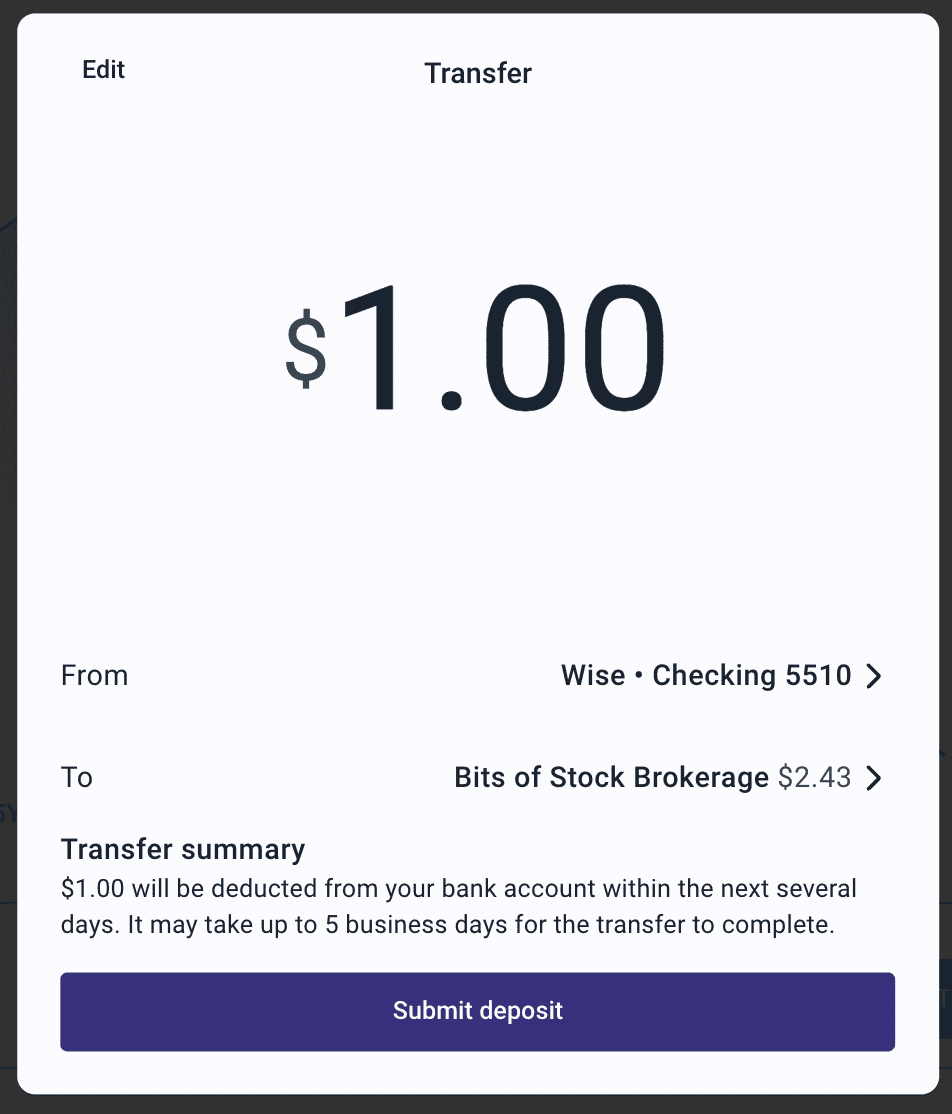
After ensuring the correct accounts are selected, click "Review" to confirm the transfer details. Confirm:
The amount
The account from which it is being deposited
The account to which it is being deposited
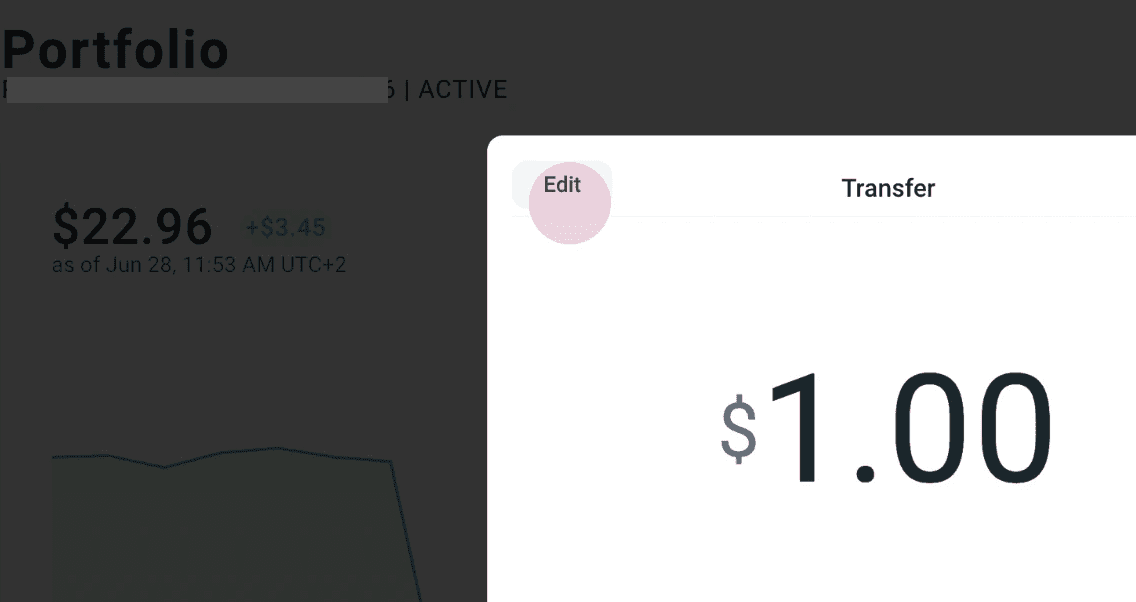
To edit the amount, click on edit on the top left corner. Change accounts or the amount if needed.
Step 6: Submit the transfer
Once everything is ready, press "Submit Deposit" or "Submit Withdrawal" to initiate the transfer.
Step 7: Confirmation
After initiating the transfer, you'll see a confirmation screen showing:
The deposit or withdrawal amount
Estimated processing time (3-5 business days)
When the funds will be available for deposits, or when the funds will arrive in your bank account for withdrawals
Click "Done" when finished reviewing.

Step 8: Check your transfer status:
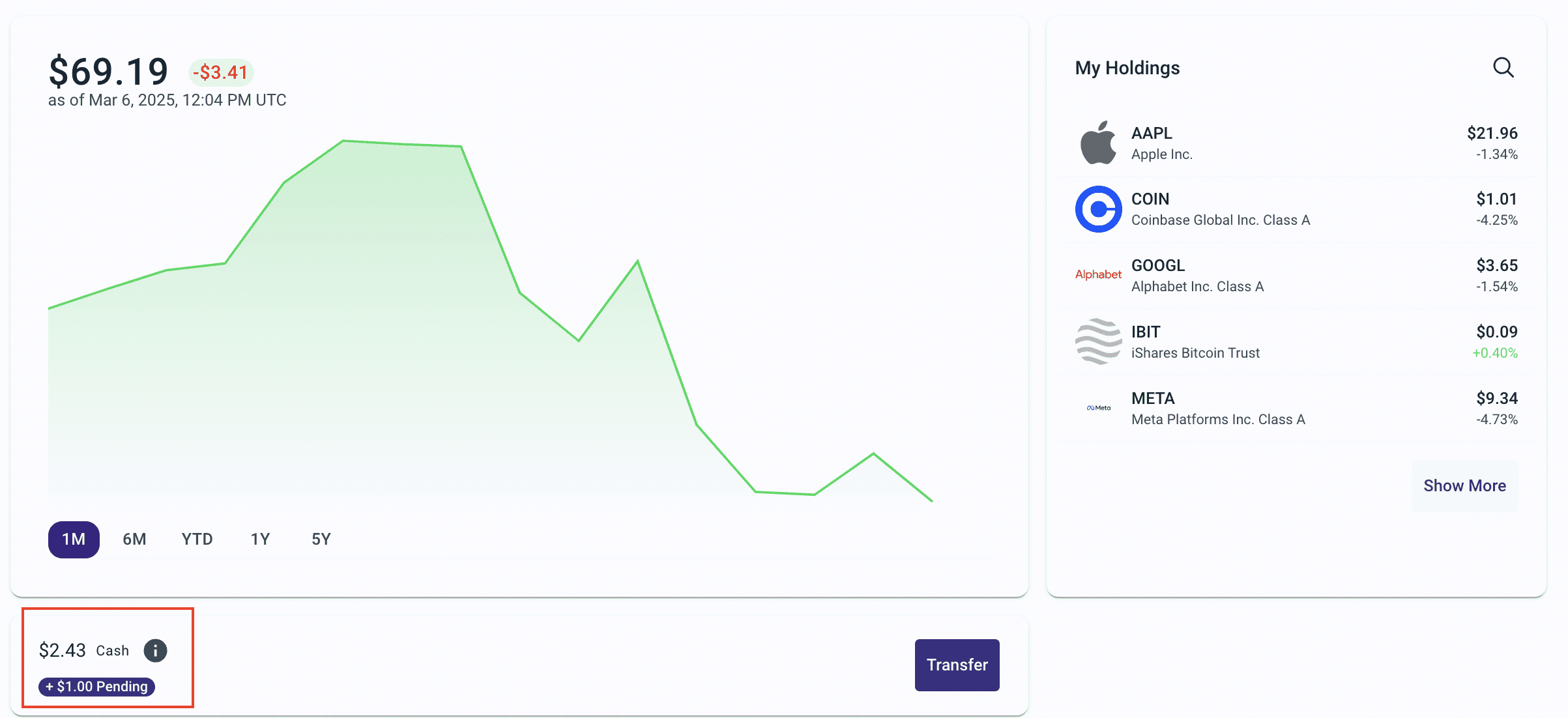
Go to the portfolio page and check the account history to see the initiated transfer, which should be pending. This guide shows a successful deposit of one dollar.
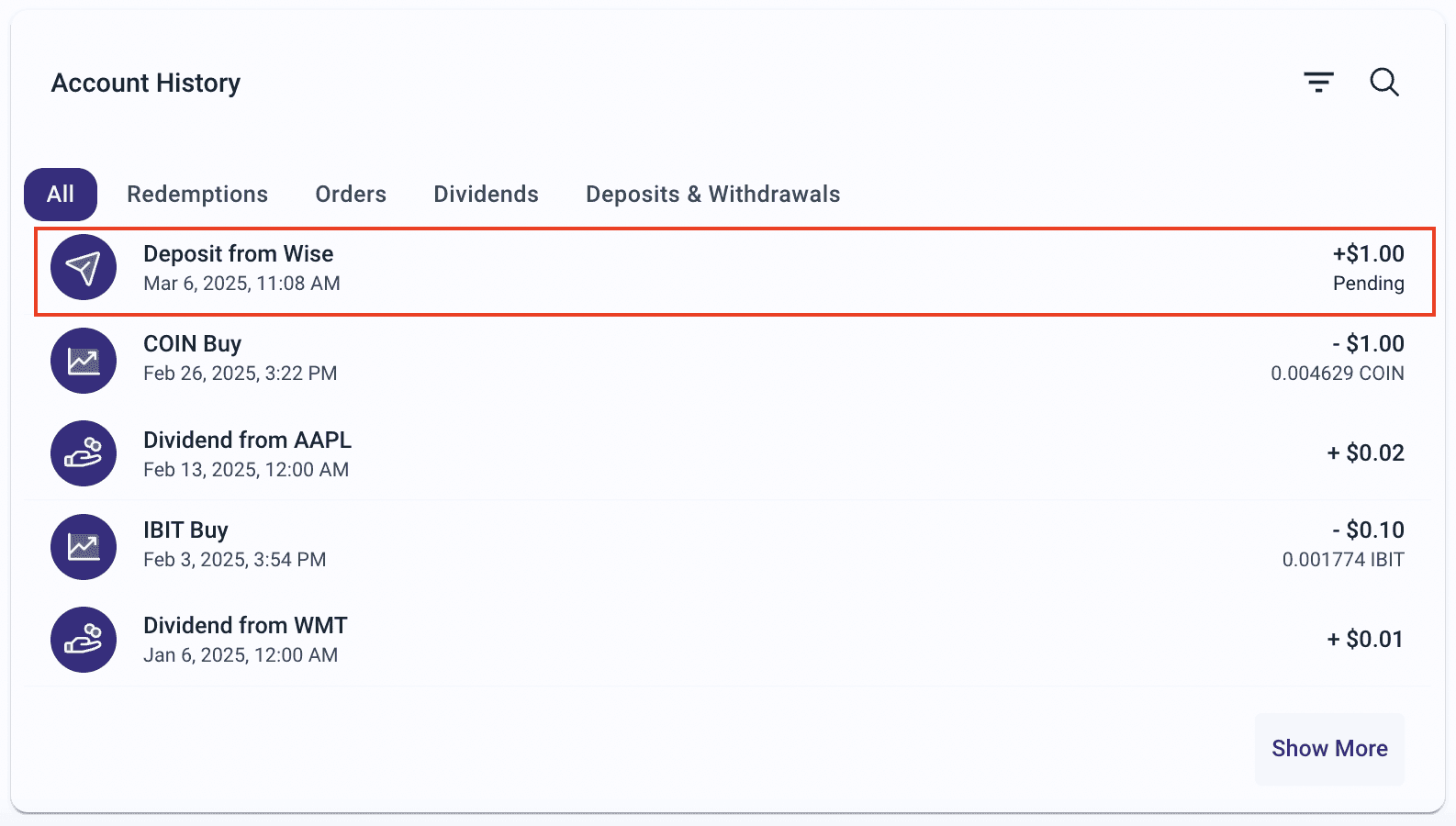
The pending transfer can also be located right under your current cash balance, making it easier than ever to keep track of your incoming and outgoing transfers.