
Cash In Like a Pro: Your Guide to Selling Stocks with Ease!
Ready to cash in on your investments?
Our new video guides you through the simple process of selling stocks with ease! Whether you’re a seasoned trader or just starting out, learn how to execute your sell orders in our application. Discover the tips and tricks to sell your stocks efficiently and effectively to start managing your portfolio like a pro today!
Want some step by step instructions?
Step 1: View your portfolio
Start by navigating to your portfolio. Here, you can begin selling stocks and also can find your current cash balance.
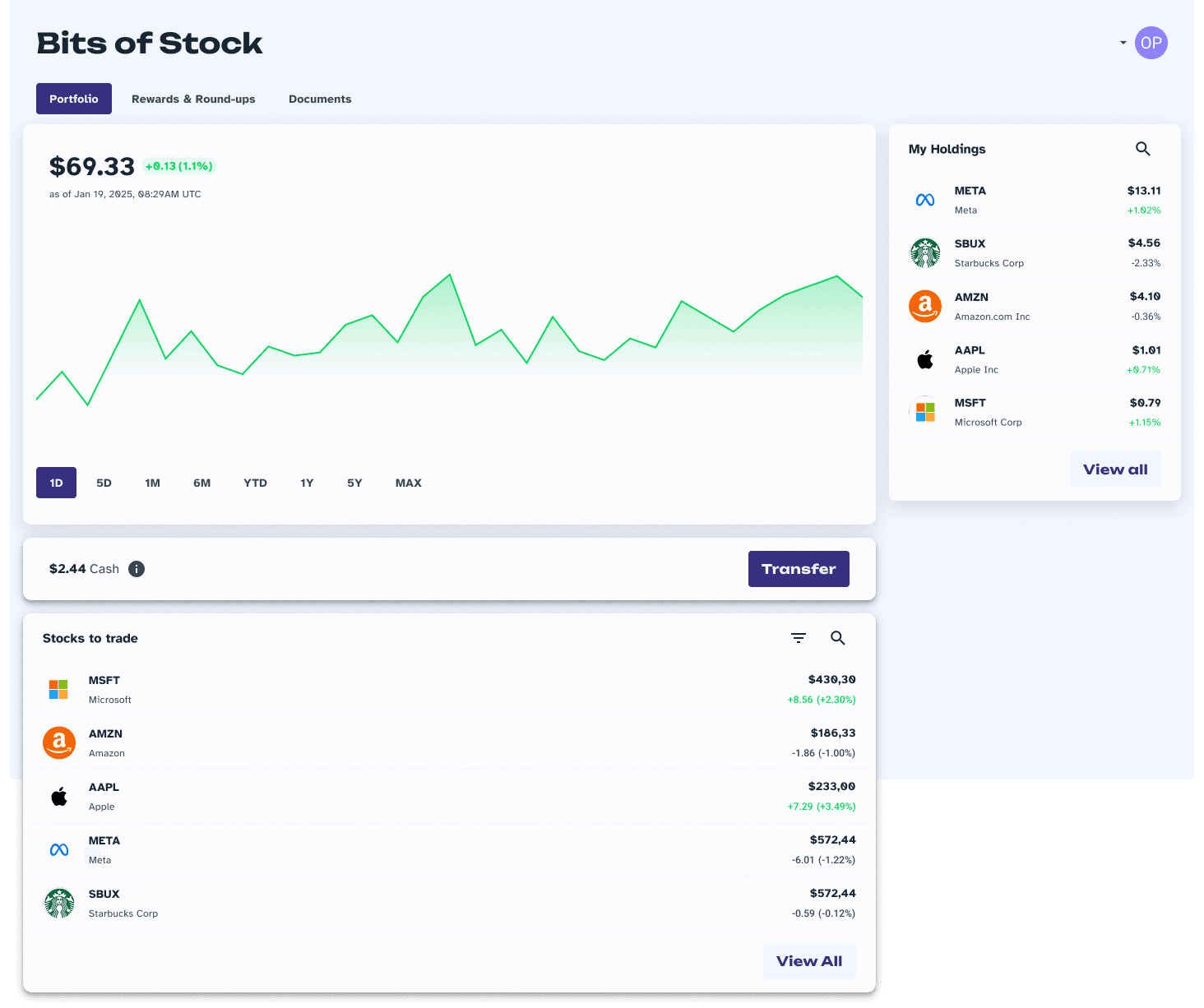
Step 2: Select a stock
Select the desired stock to sell from the "My Holdings" section on the right, which displays all the stocks you own. For this tutorial, we will be selling the Apple stock.
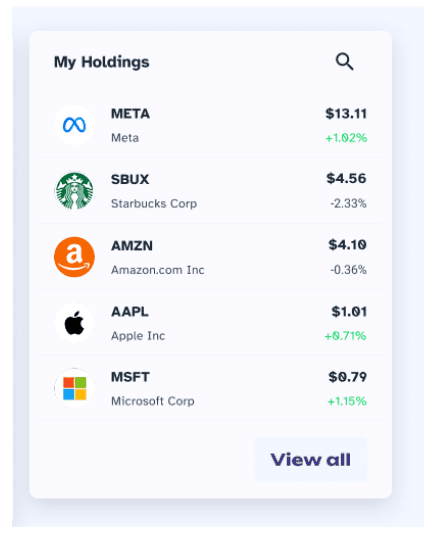
Step 3: Begin the selling process
A box will appear on the right corner of your screen with options to buy or sell the selected stock. Click on the "Sell" option to initiate a sell order.
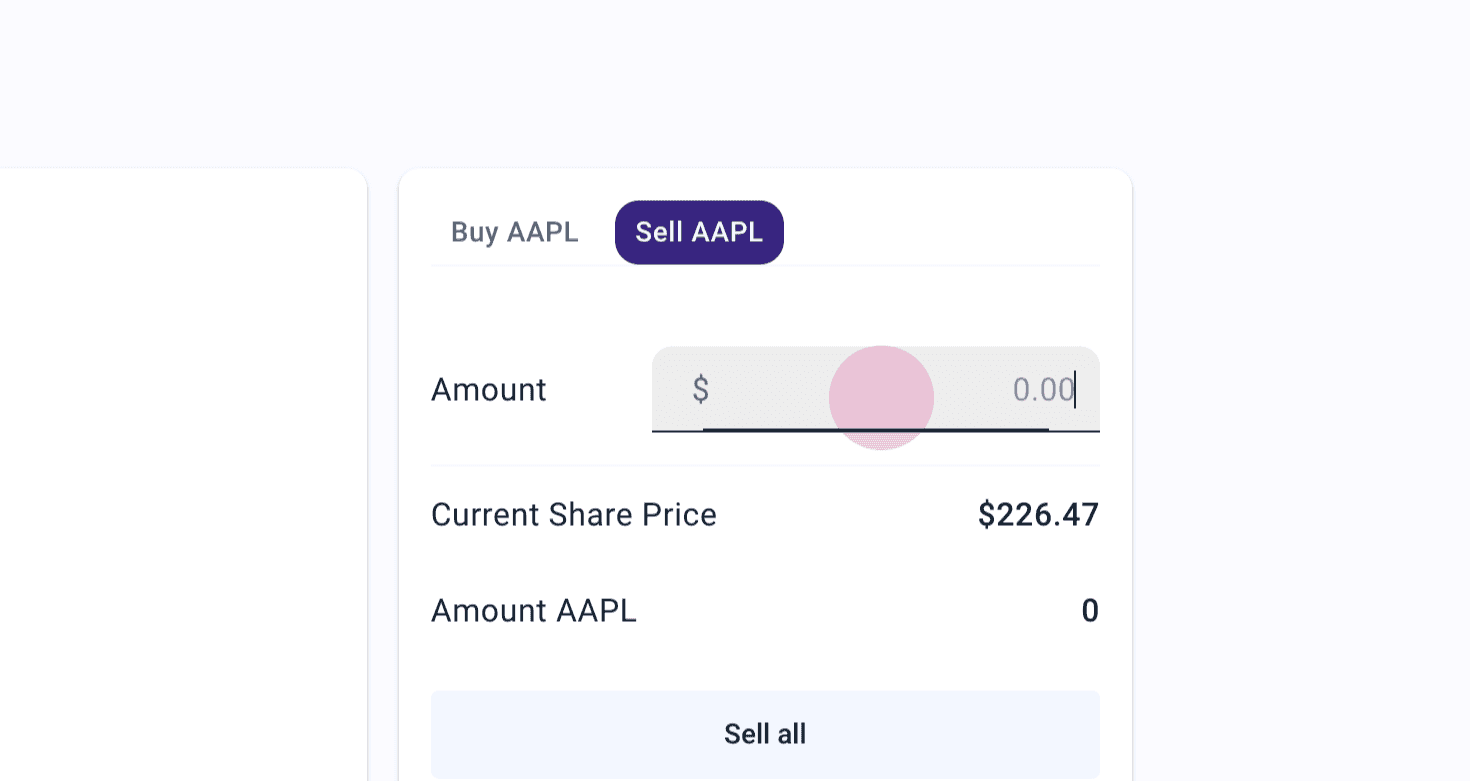
Step 4: How much?
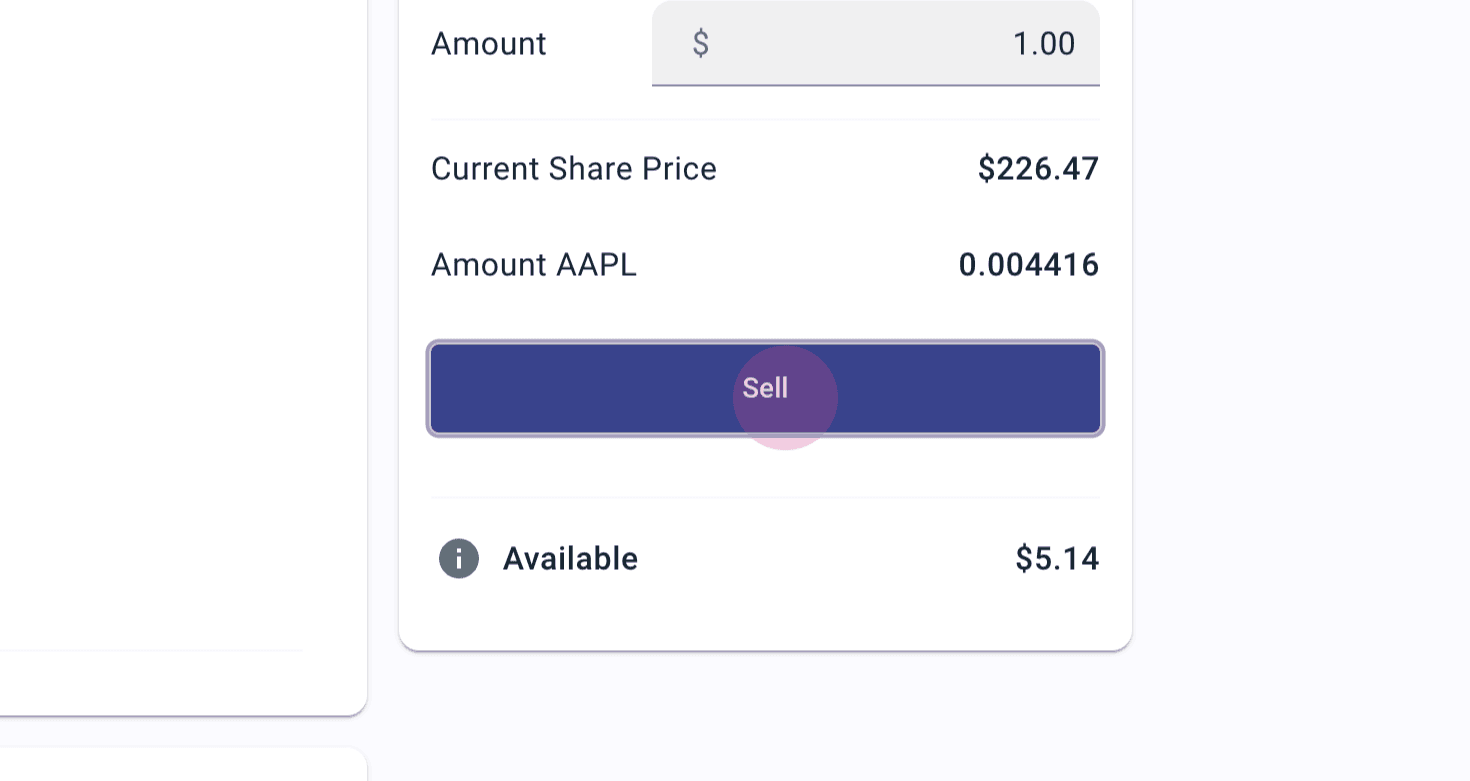
Enter the dollar amount of the stock you want to sell. For this tutorial, we will be selling $1 worth of Apple stock.
The box will also display:
The current share price of the stock
The approximate amount of stock you're selling for your chosen dollar amount
Your current ownership of the stock in dollar value
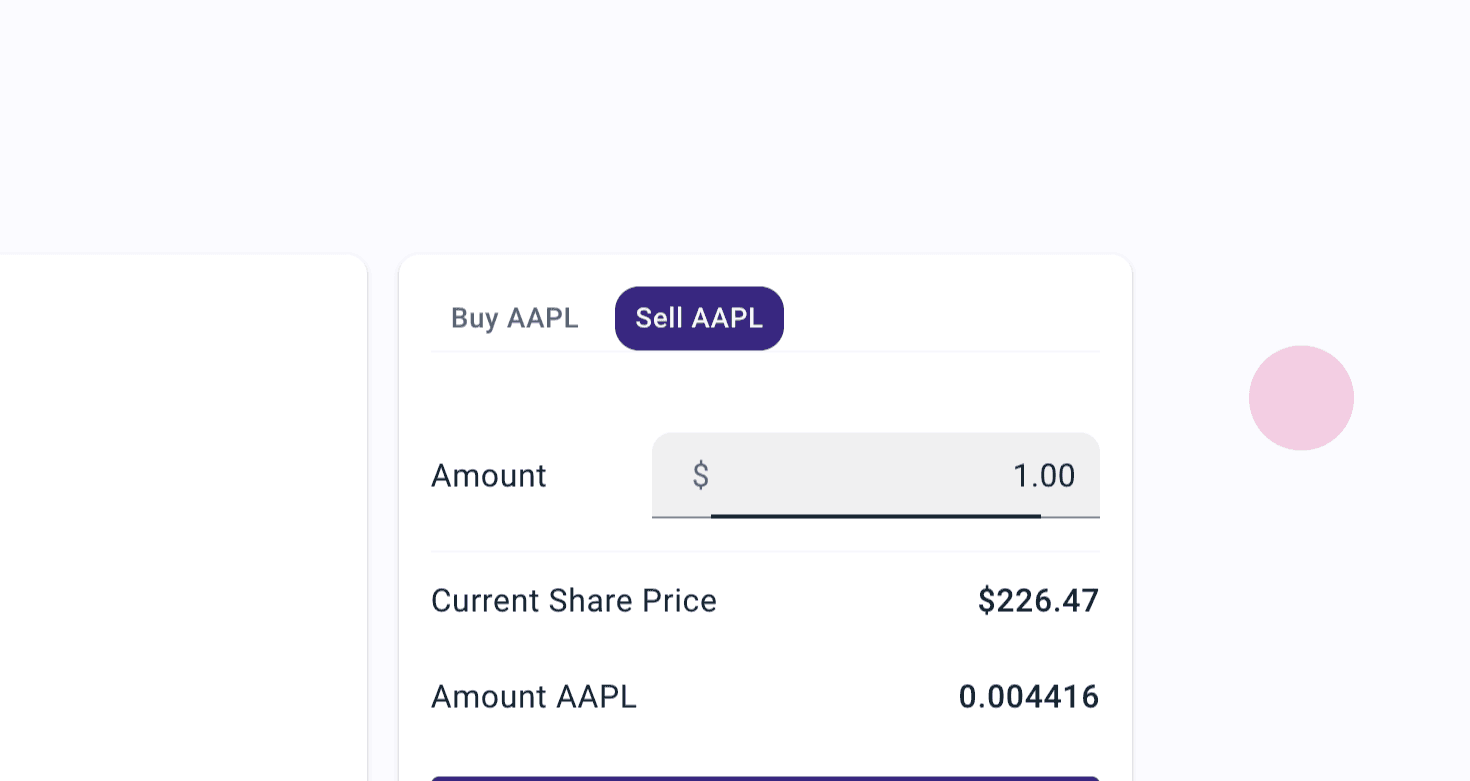
Step 5: Sell the stocks!
When ready, click on the "Sell" option at the bottom of the box. You can also click on the "i" icon under it for more information about the selling process.
Step 6: Review the details
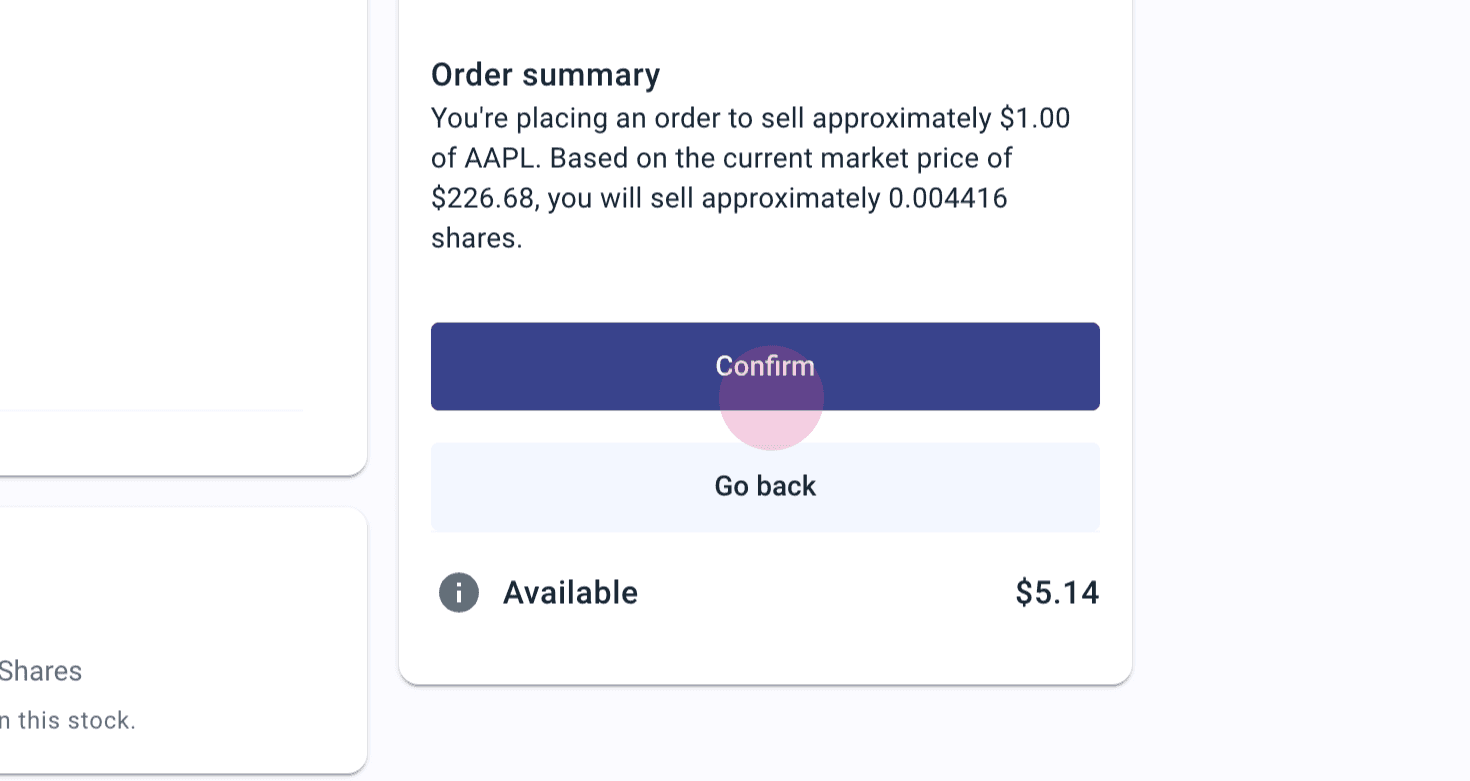
You can now review your order summary. It will display:
The dollar amount of the stock you're selling
The current share price of the stock
The approximate amount stock you're about to sell
Remember, it may take up to one business day for the sell amount to settle, depending on your bank.
If you need to make any changes to your order, click on the "Go Back" option and adjust the amount. If all information is correct, click on "Confirm" to finalize the order.
Step 8: Confirmation
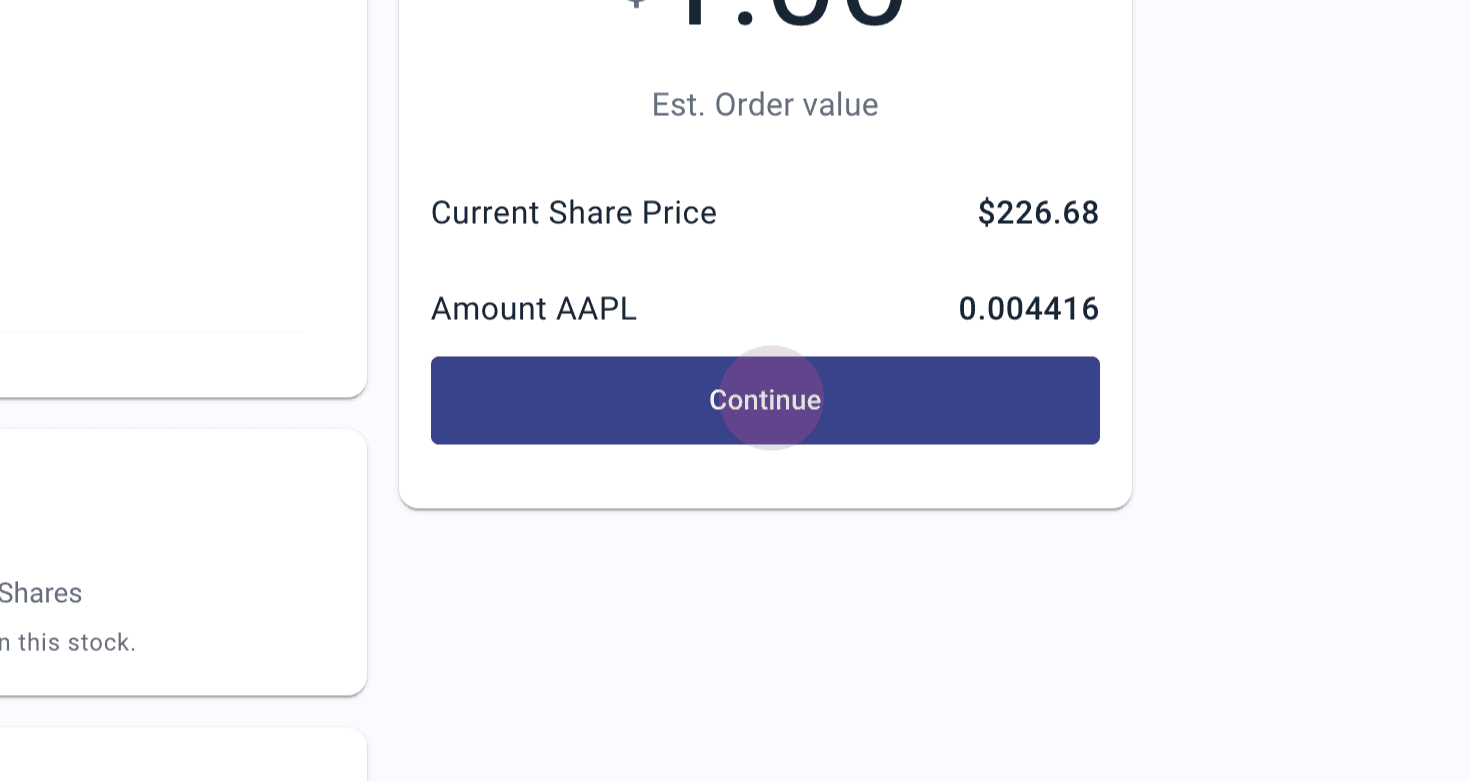
Congratulations! You've now submitted your first market sell order. Click on "Continue" to return to the buy or sell options for your selected stock.
Step 9: Review your history
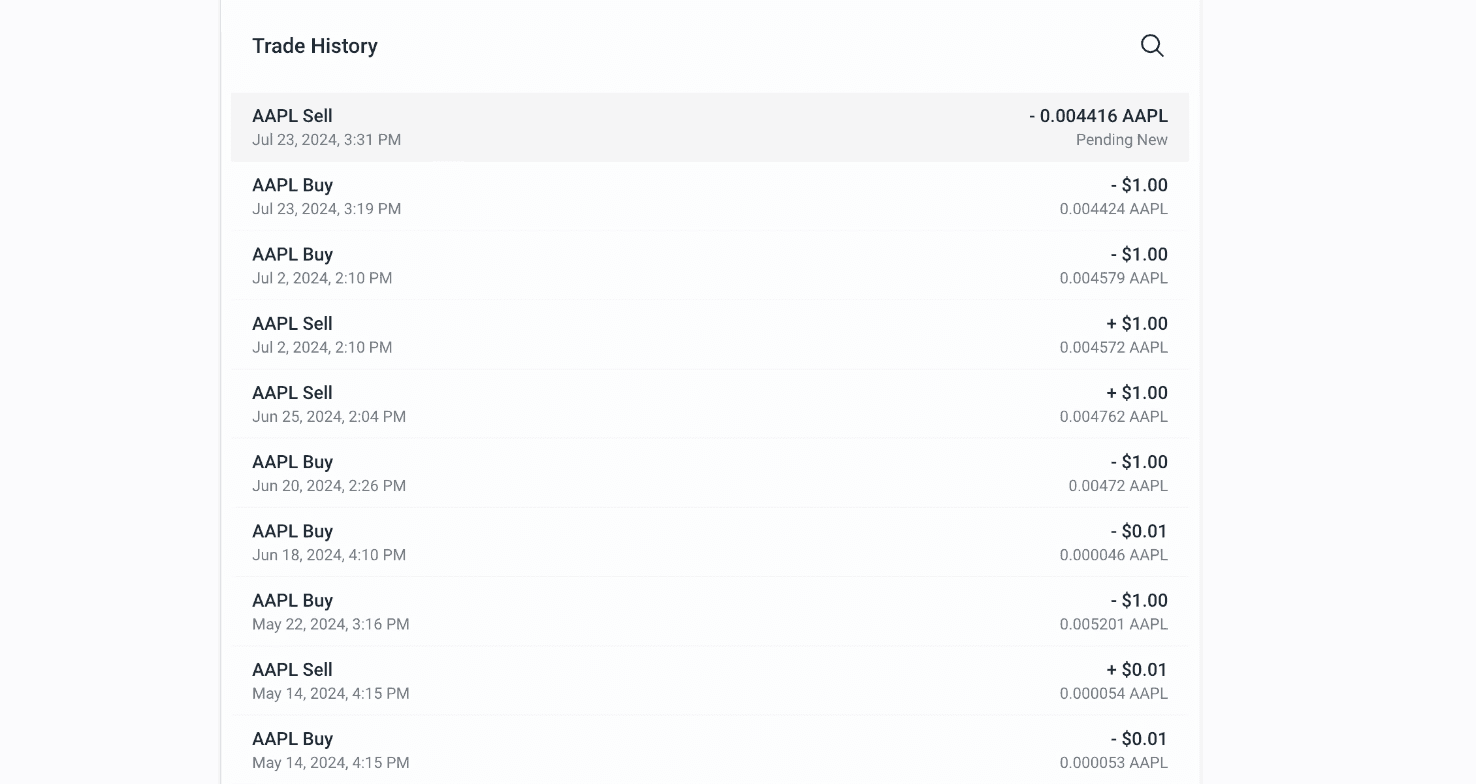
To review your order, scroll down your page to the "Trade History" section. The most recent order will show the initiated sell order of the stock you just sold, and its approximate value. The order status will be "Pending" and should be completed within one business day.
The app also displays the date and exact time the order was initiated, making it easier to track your order.
It's that simple, so go ahead and enjoy the benefits of the fractional investing!