
Cash In Like a Pro: Your Guide to Buying Stocks with Ease!
Ready to dive into the stock market?
Our latest video shows you how easy it is to purchase stocks using our intuitive app! From placing your first order to tracking your investment, we've got you covered. Learn how to select stocks, purchase them, and track your investments with real-time data. Start investing in your future today with just a few taps on your screen!
Want some step by step instructions?
Step 1: View your portfolio
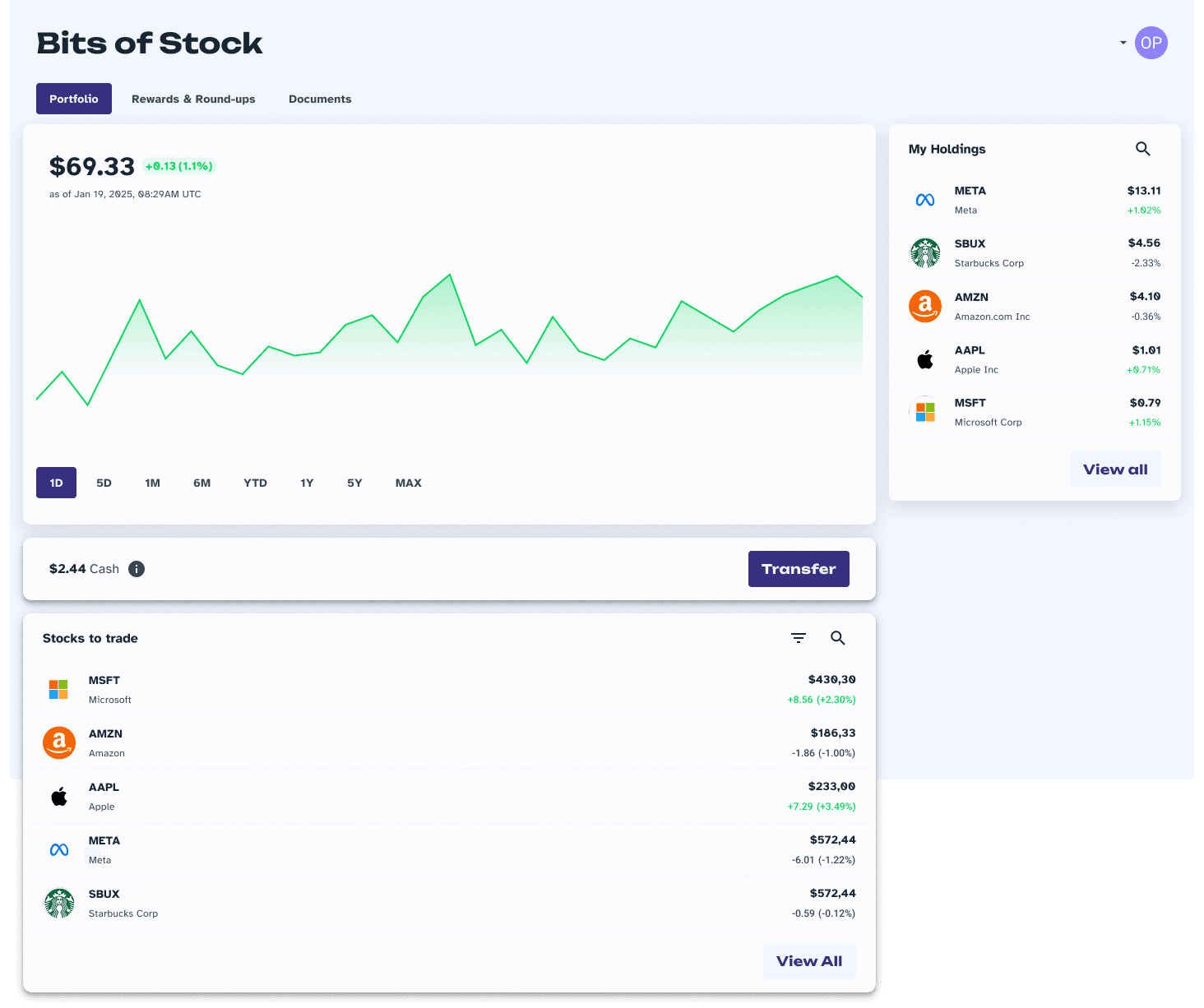
Start by navigating to your portfolio. Here, you can view your existing cash balance and begin the stock purchasing process.
Step 2: Select a stock
Check the current stocks already in your possession in "My Holdings". To buy a stock already in your holdings, simply click on the desired stock. For this guide, we will be purchasing and selecting the Apple stock.
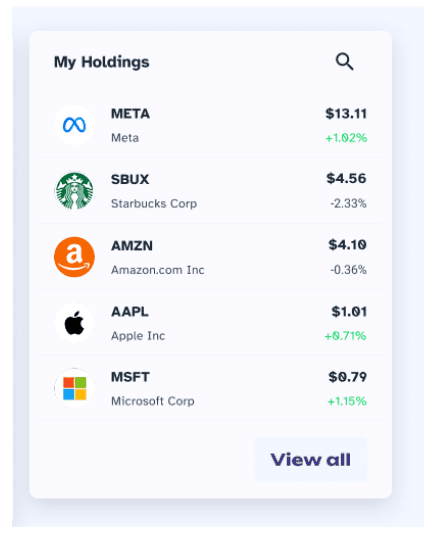
If you'd like to purchase a stock not yet in your holdings, navigate to the "Stocks to Trade" card where we have thousands of options for you!
Step 3: Initiate the purchase
You will now be redirected to the chosen stock's page. On the right, you can find a box displaying options to buy or sell the stock. Make sure to select the "Buy" option when intending to purchase.

Step 4: How much?
Enter the desired dollar amount to spend on your stock purchase. For this example, we are inputting $1.

Step 5: Confirm the details
After entering the amount, the box will display:
The current share price
The approximate number of your chosen shares to be purchased for the entered dollar amount
Buying power, which is the cash amount
You can also click on the "i" icon to learn more about buying power.

Step 6: Make the purchase!
When you are ready to initiate the purchase, click on the "Buy" option.

Step 7: Review your purchase details
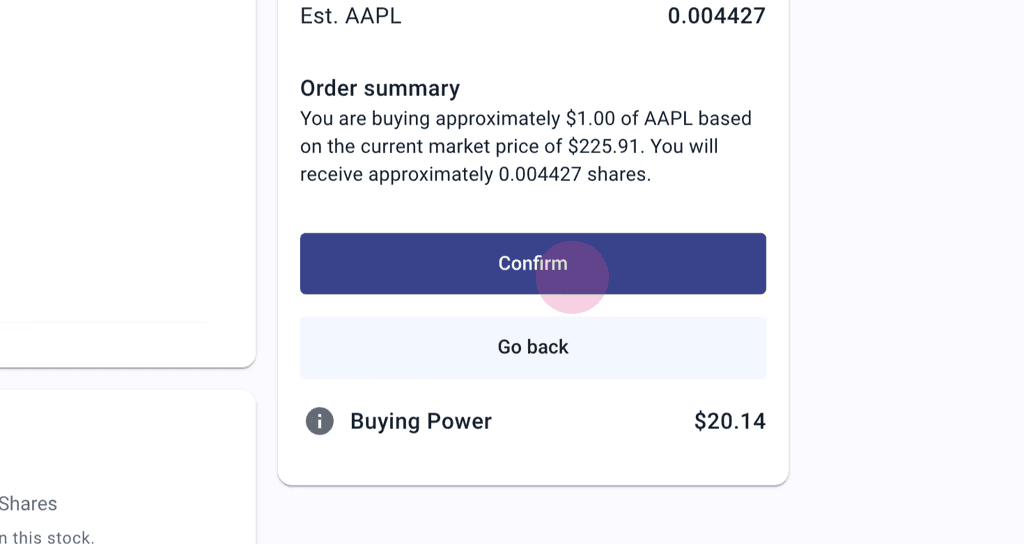
Your order summary will be displayed, showing:
The amount of stock being purchased
The current market price
The approximate number of shares to be received for the entered dollar amount
If you intend to make any changes, simply press "Go back" and adjust the desired dollar amount for the purchase. If all information is correct and you wish to proceed with your order, click on "Confirm".
Step 8: Purchase confirmation
You have now initiated your purchase! The box displays:
The order confirmation
Current share price
Approximate number of shares being purchased.
You can now go ahead and click "Continue" to exit and go back to the stocks page.

Step 9: Review your history
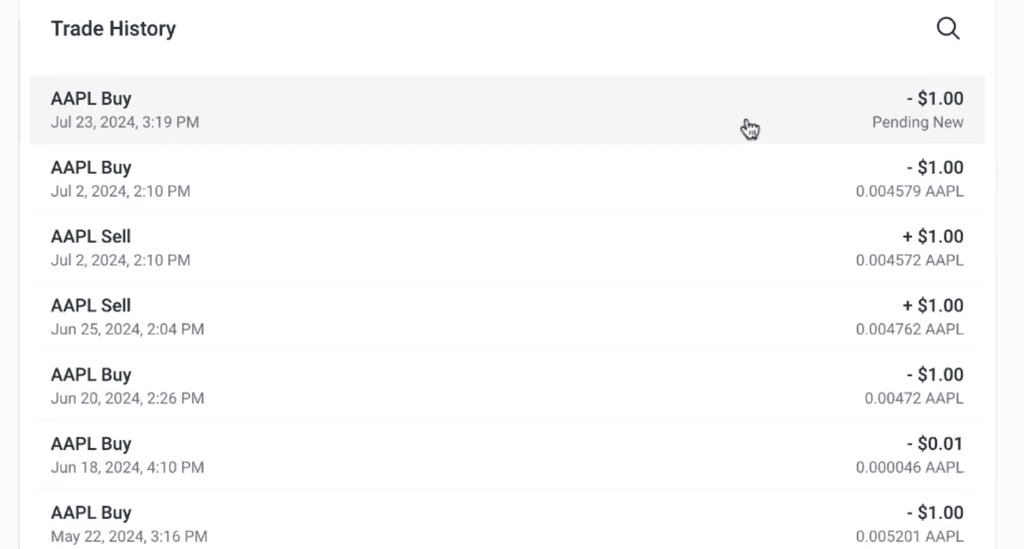
To review your order, scroll down your page to the "Trade History" section. The most recent order will show the initiated purchase order of the stock you just selected, and its approximate value. The order status will be "Pending" and should be completed within one business day.
The app also displays the date and exact time the order was initiated, making it easier to track your order.
It's that simple, so go ahead and enjoy the benefits of fractional investing!